Product Review: Stellar Converter for EDB – Simplifying EDB to PST and Microsoft 365 Exports
Stellar Converter for EDB is a powerful and user-friendly software solution designed to convert Exchange Database (EDB) files into accessible mailbox items that can be exported to Outlook PST format or directly export to Office 365. Whether organizations are performing mail conversion or simply restructuring their email storage, this tool provides a streamlined and intuitive way to extract mailbox data without needing an active Exchange Server environment.
What makes Stellar Converter for EDB stand out is its ability to handle both offline EDB files and live Exchange environments while preserving mailbox integrity, folder hierarchy, and item details. It’s suitable for IT administrators, help desk professionals, and businesses of all sizes looking to simplify the conversion and exportation process.
Key Features
Stellar Converter for EDB comes with a range of features that elevate it above basic EDB readers or simple conversion utilities. Its core capabilities include:
1. EDB to PST Conversion
The software works as a powerful EDB to PST converter, allowing entire EDB mailboxes to be converted into PST files that are fully compatible with Microsoft Outlook. This enables seamless access to mailbox data in environments where Exchange is unavailable or decommissioned.
2. Export to Microsoft 365
Instead of creating PSTs, users can export mailbox content directly to Microsoft 365 mailboxes. This feature is especially useful for organizations moving to cloud-based infrastructure.
3. Selective Export
Users can choose specific mailboxes, folders, or even individual items (like calendars, contacts, notes, tasks) to export, rather than converting an entire database.
4. Preview Before Export
The built-in preview feature displays mailbox contents post-scan. Users can inspect emails, attachments, calendar entries, and other items before deciding what to export.
5. Support for Multiple Exchange Versions
Stellar Converter for EDB supports Exchange Server versions from 5.5 through the latest editions Exchange Server SE, ensuring compatibility across legacy and modern systems.
6. Filtered Export
Advanced filtering options allow export based on date range, item type, and mailbox properties.
7. Preserves Folder Structure
During conversion, the tool maintains the original folder tree, ensuring that users find items in the right place after export.
8. User-Friendly Interface
With a simple, wizard-driven interface, even non-technical users can work through conversion and export steps without confusion.
Step-by-Step: Exporting to PST
Exporting mailbox data from an EDB file to a PST is one of the most common workflows. Here’s how it typically works:
Step 1: Launch the Software
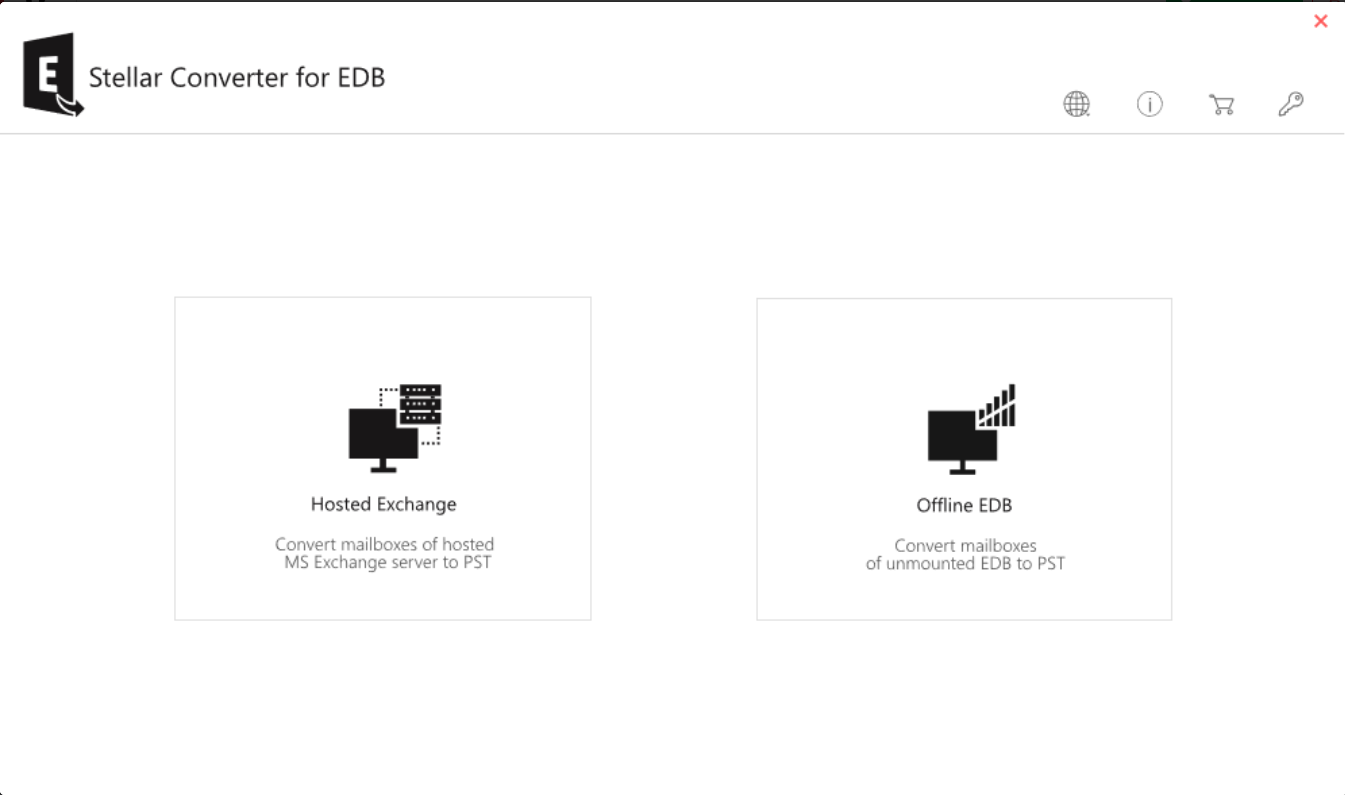
Once installed, open Stellar Converter for EDB. The home screen allows you to select the EDB file you want to work with.
Step 2: Select the EDB File
Click on Browse to locate your offline EDB file. The software will automatically detect associated STM (if present) and link it for processing.
Step 3: Scan the Database
After selecting the EDB file, initiate the scanning process. The software quickly indexes all mailbox content. A progress indicator offers real-time scanning status.
Step 4: Preview Mailbox Content
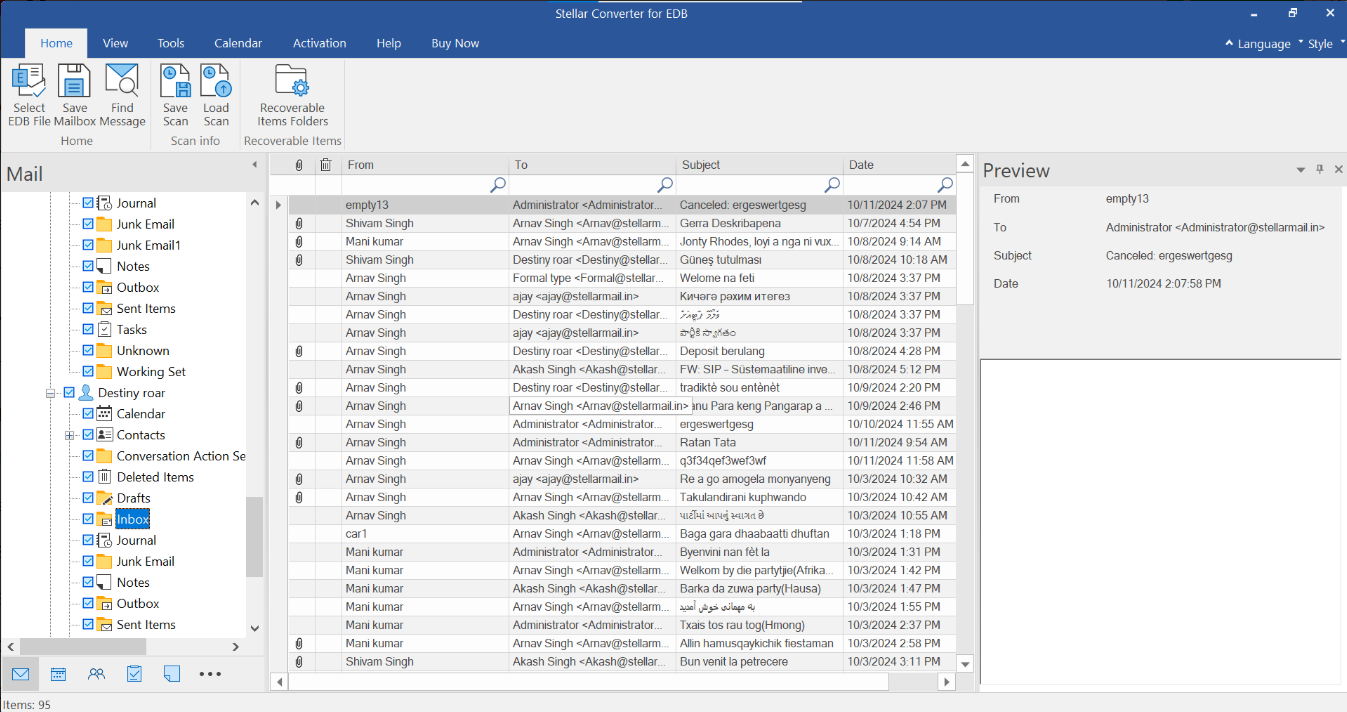
Once the scan completes, the software displays all mailboxes in a navigable tree structure. You can expand mailboxes to view emails, attachments, calendars, contacts, notes, and tasks.
Step 5: Select Items to Export
Choose entire mailboxes or specific folders/items you want included in the PST. Use the filtering feature to narrow down by date or item type if needed.
Step 6: Export to PST
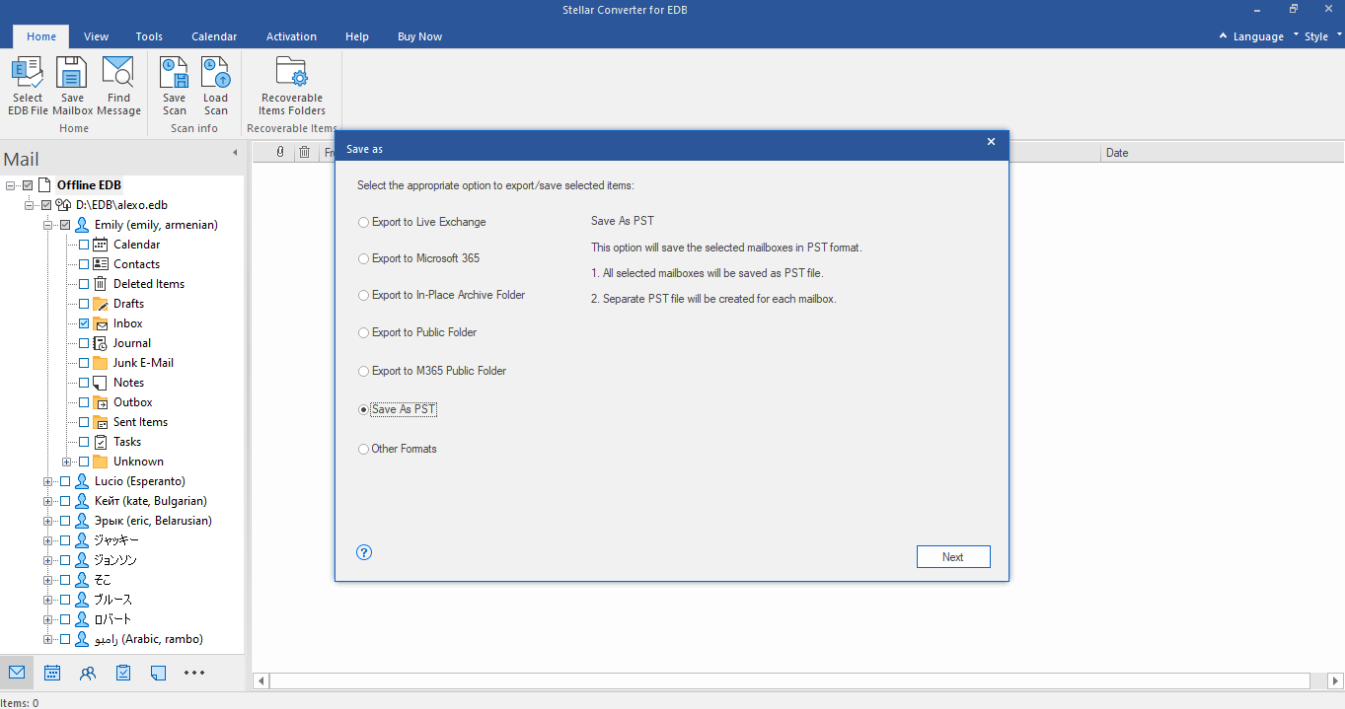
Click Export and choose the Export to PST option. You’ll be prompted to select a destination folder where the PST will be saved.
Step 7: Complete and Verify
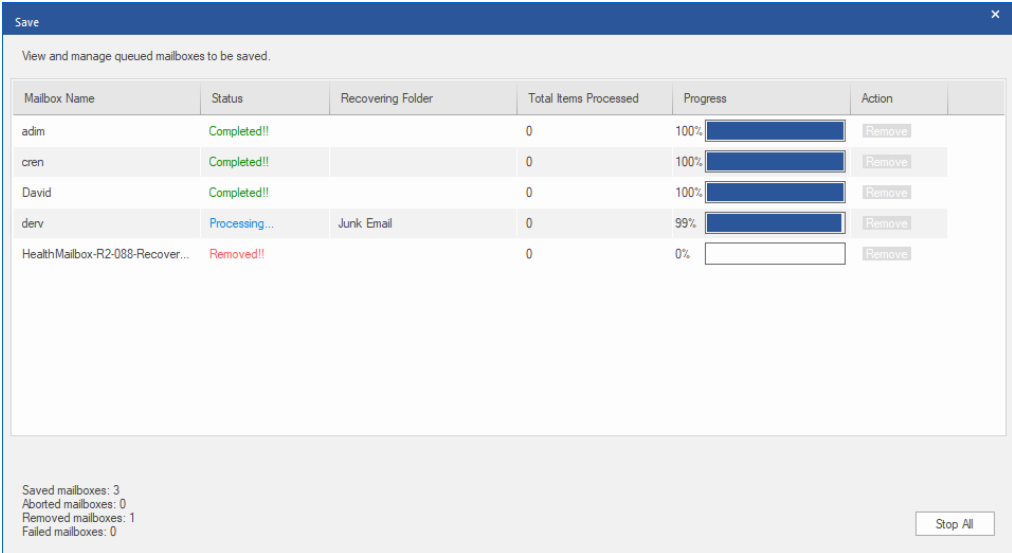
The export runs and notifies you on completion. Once done, launch Outlook and open the generated PST to verify contents. The original folder hierarchy and item details will be intact.
Step-by-Step: Exporting to Microsoft 365
Exporting mailboxes to Microsoft 365 directly from EDB is highly valuable for organizations moving to the cloud. Here’s how that process works:
Step 1: Start the Application
Open Stellar Converter for EDB and load your EDB file as described above.
Step 2: Scan and Preview
After scanning completes, preview the mailbox data and select the items or entire mailboxes you want to export to Microsoft 365.
Step 3: Choose Export to Microsoft 365
Click Export and pick the Export to Microsoft 365 option. You’ll be prompted to sign in with Microsoft 365 admin credentials.
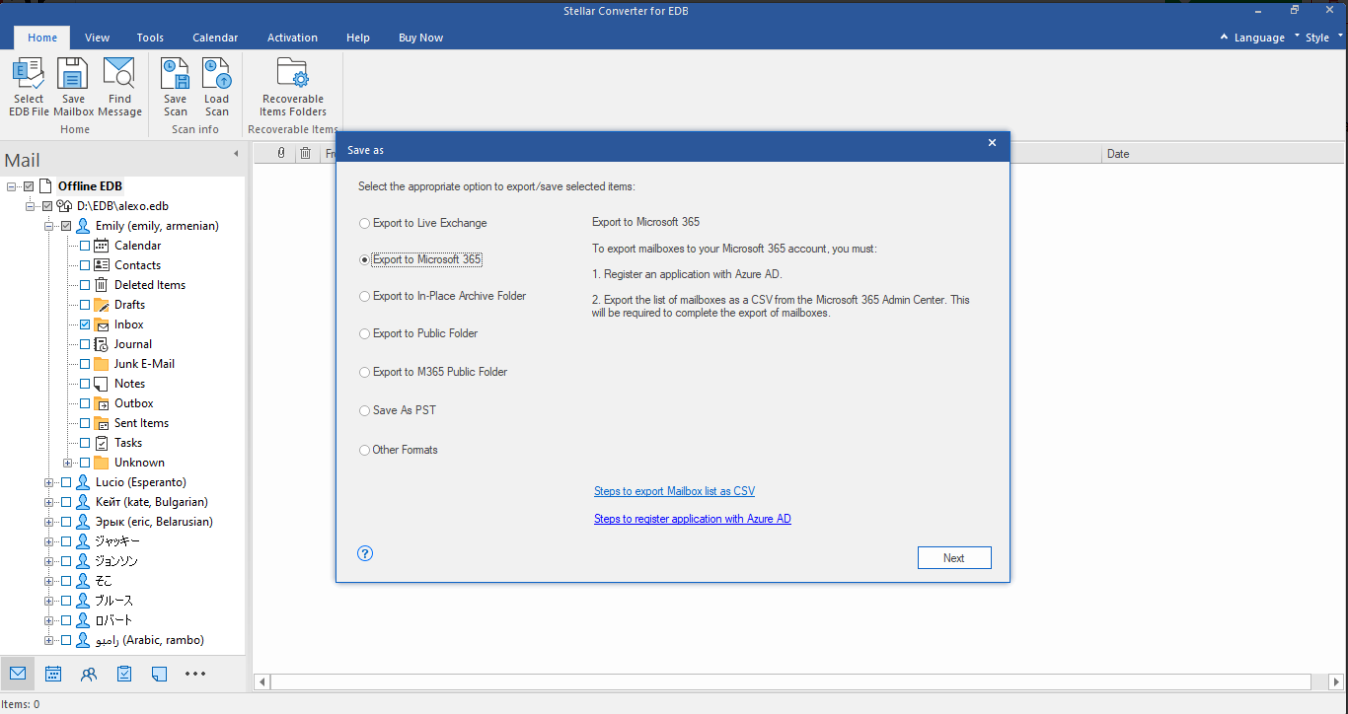
Step 4: Authenticate and Map Mailboxes
Enter your Microsoft 365 administrator credentials if choosing manual registration. The software will authenticate and fetch the list of target mailboxes. Map each source mailbox from the EDB to a corresponding Microsoft 365 user account.
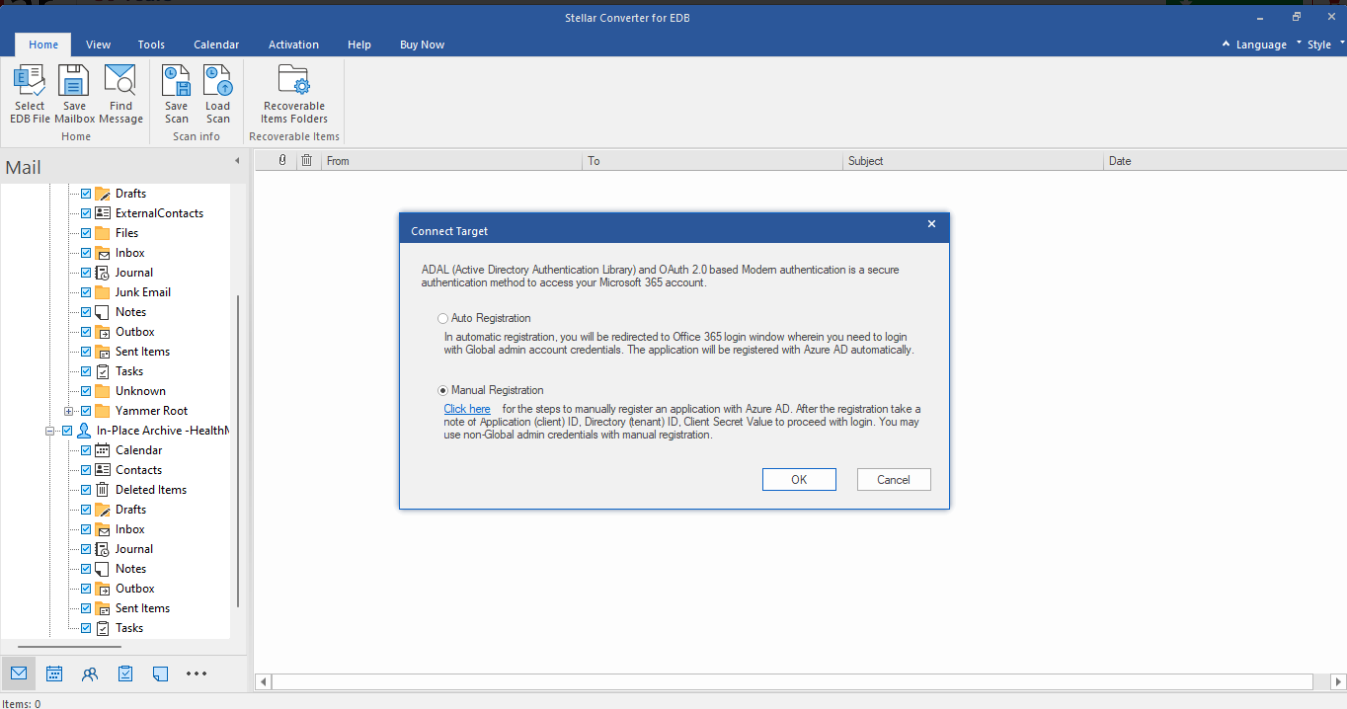
Step 5: Configure Filters and Options
If needed, apply export filters (such as specific date ranges). Confirm that the mailboxes are correctly mapped and that settings are as intended.
Step 6: Start Conversion
Initiate the export. The tool exports mailbox items directly to Microsoft 365. A progress bar displays export status, and logged actions help track issues or successes.
Step 7: Validate in Microsoft 365
Once the process completes, log into Microsoft 365 and verify mailbox contents. All folders, emails, and other items appear according to the original structure.
Pros
Stellar Converter for EDB delivers a strong set of advantages, especially for IT teams tackling mailbox conversion challenges:
1. Versatile Export Options
Whether exporting mailboxes to PST files or directly to Microsoft 365, the software supports both workflows smoothly.
2. Simple User Interface
The wizard-driven UI reduces complexity, making the tool accessible even to administrators with limited Exchange experience.
3. Detailed Preview Before Export
Seeing mailbox content before export helps avoid unnecessary conversions and ensures that only relevant data is processed.
4. Selective and Filtered Export
Users aren’t forced to convert everything; they can choose specific mailboxes, folders, or date ranges, saving time and storage.
5. Robust Compatibility
Support for multiple Exchange versions makes it useful across diverse IT environments.
6. Maintains Folder Hierarchy
Keeping the original structure intact improves user experience post-conversion.
Cons
Licensing Needed for Full Functionality
The free or trial version lets users preview content, but exporting to PST or Microsoft 365 generally requires a paid license.
Verdict
Stellar Converter for EDB is a reliable, efficient, and well-designed solution for converting mailbox data from offline Exchange Database files into accessible formats. Its dual ability to export both to Outlook PST and directly to Microsoft 365 makes it a valuable tool for organizations of all sizes from small businesses modernizing their infrastructure to enterprises managing Exchange mailboxes. The intuitive interface, detailed preview capability, and selective export options make the software approachable even for less experienced administrators. If your organization needs an effective way to extract EDB mailboxes and transition them into Outlook or Microsoft 365 environments without unnecessary complexity, Stellar Converter for EDB is highly recommended.

Personal contact info – slikgepotenuz@gmail.com
Permanent Address :- Montville, NJ
CEO and co-founder at Cloudsmallbusinessservice.com